

1. Introduction :
One of the products of T2 Company is a comprehensive Saudi platform for all the important digital solutions that customers need to start their businesses and appear online.
It is the first Saudi marketplace for obtaining technical services that meet the needs of individual and business customers, and that provides the customer with the management of all their services under one platform. It is the starting point for all ambitious Saudi establishments and entities that are looking to develop their businesses to align with Vision 2030.
At SOUQT2, you’ll find ready-made, flexible, integrated, and professionally linked solutions that satisfy the client, from a Saudi domain to obtain a verified Saudi identity for your business, to an official email address and security certificates for your website, in addition to many other technical services.
At T2, customer satisfaction is our top priority. We analyze and evaluate all customer requirements with the help of a team of experts to develop services and enhance the customer experience.
objective :
This guide aims to explain how to use the 2SOUQT platform and guide users—both individuals and businesses—to the correct way to benefit from the digital services available within the platform.
The guide provides a detailed explanation of the registration mechanisms, account management, domain ordering and purchase, DNS record setup, professional email management, security certificates, hosting, and messaging services, in addition to explaining the follow-up and maintenance procedures within the control panel.
Scope of work:
This guide includes a simple and clear explanation of all the services and functions available on the 2SOUQT platform, and covers the following elements:
1. Account Management:
Create an account, log in, activate your account, edit your data, and manage security.
2. Domain Management:
Register a new domain, transfer a domain, renew a domain, restore a domain, transfer ownership, edit registrar data, and manage DNS settings. DNSSEC
3. Professional email services:
Purchase, activate and manage Microsoft 365 and Google Workspace packages, and set up email DNS records.
4. SSL security certificates:
Purchase and manage certificates from Sectigo and GoGetSSL providers.
5. Websites and Hosting:
Website creation, hosting, and landing page services.
6. Messaging services (SMS):
Manage message packages and track their status.
7. Control Panel and Procurement:
View services, track orders, view invoices, and manage returns.
8. Billing and Payment Methods:
Displaying automatic payment and renewal processes.
2. Definitions :
Domain:
It is the website address used to access it via the internet, such as example.sa. It is similar to the street name that leads you to a specific place on a map.
Subdomain:
It is not an independent domain, but rather an additional part that is added before the main domain, and is used to organize or customize a specific part of the site, such as: mail.example.sa or support.example.sa.
Extension Domains :
The last part of a domain name, which comes after the last period in the web address, indicates the nature of the website/domain. Examples:
.com for businesses, .org for non-profit organizations and associations, and .net for networks, telecommunications companies, or technology projects.
General Top Level Domains – gTLDs :
One type of domain name is known as an international domain name, with common extensions such as .com, .net, .org, and .info. These are typically used for businesses, organizations, or public websites. Example: example.com
Country Code Top Level Domains (ccTLDs) :
One type of domain is a global domain with a local identity specific to countries, such as: .sa (Saudi Arabia), .ae (UAE), .jo (Jordan), .uk (UK). It is ideal for local companies or government entities within a country, such as company.sa. These domains are usually subject to regulations and instructions at the country level (for example, the Saudi domains .sa are regulated by the Communications, Space and Technology Commission CST).
Government domains .gov :
One type of domain, and usually this type of domain is reserved for governments, universities, or military institutions, and no one can register it except with an official license.
For example, in the Kingdom of Saudi Arabia, the Digital Government Authority (DGA) is the regulatory body for government domains, and no institution can register official government domains except through the DGA platform.
Premium Domains :
Short domains or those with well-known names are the most in demand and the most expensive to register, for example: hotels.com.
Agent (Saudi domain registration agent):
T2 is an entity licensed by the Communications and Information Technology Commission (CITC) to register Saudi domains. It’s important to note that Saudi domains cannot be registered or transferred through international agents; their registration and management are restricted to licensed local agents only. However, they can be linked to services provided by international agents or service providers.
T2 has been an official registration agent licensed by the CITC since the end of 2022.
Recorder:
The account owner and domain applicant (client)
Administrative Coordinator:
The person appointed by the client/entity to manage the domain is the most important account, as he is the only one authorized to submit requests, modify domain data, manage it, and approve these requests.
Financial Coordinator and Technical Coordinator:
This is a pro forma account for communication purposes only with the relevant parties within the financial and technical team.
DNS Records:
These are settings used to link a domain name to various services, such as email or hosting. They are similar to instructions that tell the internet how to handle your domain name.
Control Panel:
It is a page or platform used to manage your services, such as domain modification, email setup, or order tracking and technical support.
Record A:
It is a type of DNS record used to point a domain to a specific IP address (server address). For example: example.sa → 192.0.2.1.
MX Record:
It is used to link the domain to the email service, so that messages are routed to the correct server.
TXT Record:
A text log within DNS settings, used for multiple purposes such as ownership verification or email security settings.
CNAME Record:
It is used to point a subdomain name to another domain name (not to an IP address).
For example, blog.example.sa can be made to point to example-blog.hosting.com.
AAAA Record:
It’s similar to an A record, but it’s used to point the domain to an IPv6 address instead of IPv4.
Example: example.sa → 2001:0db8:85a3::8a2e:0370:7334
SRV Record:
A log used to locate a specific service (such as a chat or voice server) within a domain.
It contains information such as the protocol, port number, and server name.
CAA Record:
This is used to identify which Certificate Authorities (CAs) are authorized to issue SSL certificates for your domain.
It helps increase website security and prevent the issuance of unauthorized certificates.
HTTPS Record:
A relatively recent record, used to improve the performance and security of websites over HTTPS.
It helps the browser discover the optimal settings for a faster, secure connection.
TTL (Time To Live):
This is the time that DNS servers are allowed to store a temporary copy of the log before requesting an update from the primary server.
It is usually measured in minutes or seconds, such as “60 minutes”.
The shorter the TTL, the faster the update response time; however, this may affect performance.
Administrative powers:
These are the permissions that define what a user can do within the system, such as adding, modifying, or deleting. They vary according to the level of access.
Google Workspace:
A service from Google that allows you to use a professional email address with your domain name (such as name@yourdomain.sa) in addition to other services such as Google Drive and Docs.
Microsoft 365:
A service from Microsoft that allows you to use professional email alongside online and desktop Office applications (Word, Excel, Outlook).
Verification/Authentication:
The process of verifying the user’s identity before granting them access, such as entering a username and password.
Professional email service:
It is an email service linked to your domain name, and used for business purposes, such as info@company.sa. It helps build a professional image and enhances customer trust.
3. Distinguished Services:
1- Domains:
A domain name is the digital address that identifies your online business, such as example.sa, and allows customers and visitors to easily and clearly access your website or email. Through it, you can choose a suitable name that represents your brand, register it, renew it, transfer it, or manage it flexibly and reliably via the T2 marketplace platform. Domains are a fundamental step in building a professional digital identity that enhances trust and increases your online presence. The list of domain services includes the following:
● New Domain :
To register a new domain name, whether it is Saudi or international.
● Domain transfer:
To transfer a pre-registered domain from another registrar to the T2 marketplace with the possibility of automatic renewal for an additional year upon completion of the transfer.
● Scope Domain :
A service that allows you to extend the domain usage period before it expires, so that your site remains active without interruption.
● Restore Domain :
A service that allows you to retrieve your domain if it has expired, within 30 days of the expiry date.
● Possession or ownership of a domain:
A service that allows you to transfer ownership of your domain to another user within the platform.
● Editing the data of a registrar or administrative coordinator:
To update domain owner data or registered administrator information if the domain’s registered data cannot be accessed
4. Accessing Domain Services :
To access domain services, follow these steps :
1. From the main menu at the top of the page, click on the “Domains” option.
2. A list will appear containing a range of services related to domain name management.
3. Choose the service you wish to benefit from, such as registering a new domain, transferring a domain, renewing a domain, restoring a domain, acquiring a domain, or modifying the data of a registrar or administrative coordinator.
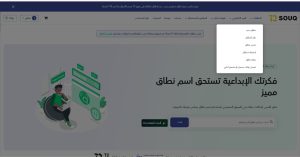
– New domain:
The New Domain service allows you to register a new domain name—Saudi or international—to represent your digital identity online, whether for your website or official email. Through this service, you can search for domain name availability, choose the extension that best suits your business, and register it for up to 10 years with automatic renewal. The platform also supports advanced search with artificial intelligence and suggests domain names that comply with regulatory requirements, ensuring easy registration and protecting your brand from the outset.
Steps :
1. Go to the “New Domain” page :
From the main menu at the top of the page, select “Domains,” then click “New Domain.” Alternatively, you can use the domain name search field on the homepage.
2. Search for an available domain:
You will be directed to the domain search page, and on this page you can enter the domain name you wish to register in the search box.
○ Press the “Search” button to perform a quick search for domain availability.
○ Or choose “Advanced Search” if you want to filter the results or search with additional properties with the help of artificial intelligence.
○ It is possible to benefit from choosing a domain name based on the name of the entity registered in the commercial register/ or approved official documents (definition of the official documents required for accepting a domain name).
○ If the domain name is not available for registration, it is preferable to try more than one domain name.
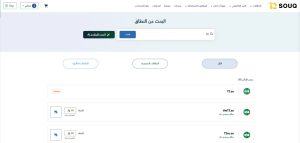
3. Results of clicking the search button:
A list of available domain names will be displayed based on your selected criteria.
● If the domain is already registered, the word “Registered” will appear in red and it cannot be registered.
● If the domain is available for registration, it will appear to you :
1. Annual registration fee (a fee that is renewed annually to own the domain)
2. Click the “Add to Cart” button to proceed with your purchase.
3. Type and description of the domain (e.g., a general Saudi domain, or a global corporate domain).
4. Make sure to check the domain name thoroughly before adding it.
5. We advise you to register domains for the same name with different extensions relevant to the nature of your business to protect your brand and country, for example, example.sa, example.com.sa
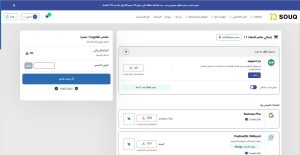
4. Steps to complete the order:
● After selecting the domain you want to register, the domain will appear in the basket.
● Next to the domain name, you choose the subscription period (one year, two years, three years, …up to 10 years.)
● The price updates automatically based on the duration you selected.
● If you have a discount coupon, write the code in the “Discount Coupon” box and then press the “Verify” button to apply the discount.
● The total amount after the discount (including tax) is shown to you
.● If you want to delete the domain, click on the trash can icon next to the domain.
● When you are ready to pay, press the “I’m ready to pay” button, fill out the service form, and pay the required amount.
● Make sure to complete the request approval step via the administrative coordinator’s email so that the request is officially approved.
Important tips and guidelines regarding registering a new domain:
Domain registration requirements:
Only Saudi domain names should be registered, and these must include the specific requirements and conditions for a Saudi domain name.
For more information about prohibited domains, please visit the Saudi Domain Name Registration page.
○ The domain name must be the name of the entity that wishes to own the domain.
○ The domain name must be a logical abbreviation of the entity’s name.
• The domain name must be derived from the entity’s name as registered in the Commercial Register or the required documents for domain registration.
• The domain name must be compatible with or shared with a registered trademark owned by the entity registered in the Commercial Register.
• The domain name must have a close relationship with the entity registered in the Commercial Register.
You can visit the link for the criteria for determining the relationship between the domain name and the registrant: https://help.nic.sa/ar/registrant
domain-relationship-criteria/
Tips for the customer when choosing a domain:
- Choose a name that is easy to remember and write.
- Make sure you have valid official documents proving the domain name’s connection to the entity (commercial registration, trademark certificate, e-commerce store documentation or filing document, license, etc.).
- Choose a domain name that is clear and short as possible. Select the appropriate extension for your business: .com, local → country code, shop → store.
- Register the domain early before someone else takes it and protect the name by registering all available related extensions.
Domain search results:
After entering the domain name and clicking the “Search” button, the search results page will appear, containing the following information:
○ All: Displays all available search results.
○ Saudi domains: Such as .sa, .com, .sa
○ International domains: Such as .com, .net, .org, and others.
Advanced scope search using AI in accordance with CST regulations:
Advanced search mode uses artificial intelligence to analyze user needs and suggest suitable domain names. The accuracy of results can be improved by providing additional information during the search process.
Please select the appropriate domain type for you:
● Business Scope:
Please fill in the following information:
• Business Registration Name
• Trademark (Optional)
• Sector Type
● Personal Profile:
Please fill in the following information:
• First Name
• Last Name
If the domain name you entered is already registered, try modifying it by adding a relevant word from your business, your company’s official name, or a relevant number to get an available name.
2- Transferring a domain to the platform:
This service allows you to easily and securely transfer a previously registered domain name from another agent to the SouqT2 platform, while preserving domain ownership and continuity of operation. It enables you to manage the domain and its services from a unified control panel, in accordance with regulatory requirements, with a one-year renewal upon completion of the transfer and approval by the administrative coordinator.
Steps:
1. Go to the “Domain Transfer” section:
From the main menu at the top of the page, select “Domains”, then click on “Transfer Domain”.
2. Enter the domain name you want to transfer:
You will be redirected to the domain transfer page.
On this page, you can enter the domain name you wish to transfer in the search box.
3. Starting the transfer process:
Before starting the transfer process, the following points must be considered:
General Procedures for Transferring a Saudi Domain Name from One Registrar to Another
Transferring a domain name from one registrar to another is prohibited within the first sixty (60) days of domain name registration, and also within sixty (60) days of the last registrar’s completed transfer request.
A domain name may not be transferred from one registrar to another if the domain name registration expires within five (5) days. The transfer process includes a one-year renewal fee only.
All transfer requests are subject to review by the Communications, Space and Technology Commission (CST), which, as the regulatory body, has the right to review any request before or after the transfer process is completed.
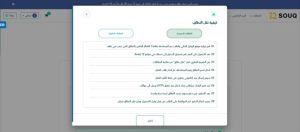
After entering the domain name and clicking the “Transfer Domain” button, detailed steps will appear explaining how to complete the transfer process.
The steps vary depending on the domain type (Saudi or International). You can select the domain type from the top of the screen.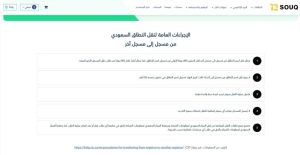
Steps to transfer Saudi domains:
1. First, go to the main website of your current (previous) registration agent (the one you are transferring from) and obtain the Auth Code.
2. On the transfer page on 2SOUQT, enter the domain name and the verification code you received from your current registration agent. Fill out the required form and agree to the terms and conditions. A message will then be sent to the mobile number and email of the administrative coordinator.
3. Open the link sent to your email and enter the verification code sent to your mobile number. Then, agree to the terms and conditions to view the code.
4. Click the “Transfer Domain” button after registering on the T2 Domain website.
5. Enter the domain code in the Auth Code field, along with the domain name.
6. Confirm the request by agreeing to the terms and conditions.
7. You will then receive a message on your mobile number and email of the administrative coordinator confirming the transfer.
8. Pay the fees to complete the transfer. The domain will be transferred and renewed for an additional year. The transfer process must be completed within a maximum of 5 days. If payment is not received within 5 days, the request will be automatically canceled.
Steps for transferring global domains:
● Check if your domain is active and unlocked.
● The domain must have been registered for at least 60 days.
● The domain must have at least 14 days remaining before expiry.
● Obtain a valid authentication code.
● You will receive an email confirming the domain transfer.
● The domain transfer process takes 5 to 7 days to complete.
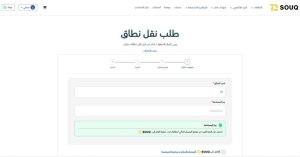
Fill out the transfer request form:
After reviewing the transfer steps, you will be directed to a domain transfer request form.
Follow these steps to fill out the form:
● In the “Domain Name” field: The domain name will be automatically filled in based on what you entered in the previous step.
● In the “Authentication Code” field: Enter the authentication code (EPP code) you received from your current domain registrar.
● If you don’t have the code, click the link below the field for instructions on how to obtain it from your previous service provider.
● Next, select the option to agree to the “SOUQT2 Terms and Conditions and Privacy Policy” by checking the box.
● Click the “Next” button to proceed to the next step.
Invoice:
On the invoice page, you will see the transfer cost details. These include:
● Domain name.
● Registration period.
● Price inclusive of tax.
● Option to add a discount code (if applicable).
Review the information, then click the “Ready to Pay” button to proceed to the payment page.
Payment:
● Choose your preferred payment method (such as STC Pay, Mada, Mastercard, Visa, Apple Pay)
● Enter your payment details accurately.
● After completing the payment, you will receive a confirmation message, as well as email and mobile notifications.
● We assure you that we never save your card details. For automatic renewal, we simulate an electronic payment gateway to complete the renewal process.
Important tips and guidelines regarding domain transfer:
After payment, the system immediately begins processing the transfer request. The domain is transferred within 24 hours to 5 business days.
– Domain renewal:
This service allows users to extend their domain name validity before its expiration date, ensuring the uninterrupted operation of their website and related services. Through the T2 Market platform, users can choose a suitable renewal period and activate the automatic renewal option to avoid forgetting to renew in the future.
The process includes reviewing domain details, generating a clear invoice, and easily completing payment through multiple payment methods.
The renewal request is officially approved by the administrative coordinator, and confirmation notifications are sent via email and mobile.
Steps:
Access the “Domain Renewal” section:
From the main menu at the top of the page, select “Domains”, then click on “Renew Domain”.
Select the domain name you wish to renew:
You will be redirected to the domain renewal page.
On this page, you can click the “Select” box to view a list of domains associated with your account.
Starting the renovation process:
After selecting the domain from the list, press the “Renew Domain” button.
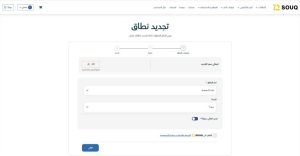
After selecting the desired domain, you will be taken to the “Domain Information” page, which includes the following options:
1. Choosing the scope:
The domain name you selected is displayed here; you can change it if you wish, via the menu.
2. Determining the renewal period:
Choose the domain renewal period from the list (example: one year, two years…).
3. Activate the “Renew domain?” option:
You can enable this option to automatically renew your domain upon expiry, ensuring its continued operation.
Next, select the option to agree to the “SOUQT2 Terms and Conditions and Privacy Policy” by checking the “Agree” box.
Click the “Next” button to proceed to the next step.
Invoice:
On the invoice page, you will see the renewal cost details, including:
● Domain name.
● Renewal period.
● Price inclusive of tax.
● Option to add a discount code (if available).
Review the information, then click the “I’m ready to pay” button to proceed to the payment page.
Payment:
● Choose your preferred payment method (such as Mada, Visa, or Apple Pay).
● Enter your payment details accurately.
● After completing the payment, you will receive a confirmation message, as well as email and mobile notifications.
● Ensure that the administrative coordinator approves your renewal request via their email for the process to be officially finalized.
– Domain recovery:
The domain recovery service allows customers to reclaim their domain name after it expires within a grace period of up to 30 days from the expiry date. During this period, the domain remains registered to the current registrant and is not available for registration by others. Customers can submit a recovery request through the T2 Market platform by selecting the expired domain from the list of domains associated with their account and then submitting the request. The domain will then be renewed for one year only.
If the domain is not recovered within the grace period, it becomes available for registration again with all registrars, and the customer may lose their rights to it.
Steps:
Access the “Domain Recovery” section:
From the main menu at the top of the page, select “Domains”, then click on “Restore Domain”.
Select the desired range to be restored:
You will be redirected to the domain recovery page.
On this page, you can click the “Select” box to view a list of expired domains associated with your account.
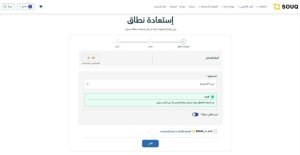
Submitting a refund request:
After selecting the domain from the list, click the “Restore Domain” button.
You can restore the domain within 30 days of its expiry date.
If the domain is not restored by the current registrant after the 30-day period, the domain will become available for registration with all agents.
Important points before restoring the domain:
1. The domain must be expired to be eligible to request domain renewal.
2. You can acquire more domains within 30 days of the expiry date, after which they become available to others.
3. Domains are renewed for one year only. Ensure automatic hash checks are enabled.
4. If your domain is still active, you can renew it directly through the “Renew Domain” option.
For more information, visit CST: https://help.nic.sa/en/regulation/
Note: If there are no expired domains in your account, you will see the message “No domains to restore”.
– Domain possession:
This service allows for the secure and organized transfer of domain name ownership from the current owner to another user within the T2 marketplace platform.
This service is used in situations such as business sales, brand changes, or any circumstance requiring the formal transfer of domain ownership. The acquisition process is subject to the approval of the administrative coordinator and verification of the new owner’s eligibility according to the approved domain registration regulations.
After the procedures and approvals are completed, all domain management privileges are transferred to the new owner seamlessly and reliably.
Steps:
Accessing the “Domain Ownership” section:
From the main menu at the top of the page, select “Domains”, then click on “Own or Own a Domain”.
Enter the domain name you want to transfer:
You will be redirected to the domain transfer page.
On this page, enter the domain name you wish to transfer in the input field.
Initiating the acquisition or ownership process:
After entering the domain name, click the “Start Now” button to begin the ownership transfer process.
You can transfer the domain for any reason, such as:
● Selling the business
● Changing the brand name
● Or any other reason requiring a secure and seamless transfer of ownership.
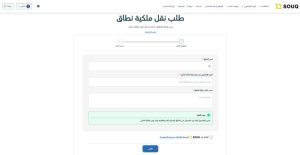
Fill out the domain ownership transfer request form, which contains the following points:
.Domain Name: Enter the domain name you wish to transfer.
Email Address of Current Owner: Enter the email address of the administrator currently responsible for the domain.
Reason for Domain Request: Write a brief title explaining the reason (e.g., “Transfer of Ownership Due to Project Sale”).
Details of Transfer Reason: In this field, explain in detail why you want the domain in advance and your relationship with the current owner.
Next, select the option to agree to the “Terms and Conditions and Privacy Policy” by checking the box.
Click the “Next” button to proceed to the next step.
The request form will be displayed.
Important tips and guidelines regarding domain ownership:
1. The new registrant must be eligible to register the domain according to the terms and conditions of the Domain Name Registration Regulations.
2. The new registrant is responsible for the continued hosting of the domain.
3. In the event of cancellation of the application, all relevant parties will be notified.
4. An application is considered received by SouqT2 only after approval by the administrative contact; otherwise, it will not be considered received and will remain pending.
5. Pending applications are automatically rejected after one week.
6. If the administrative contact does not receive the activation message, the account holder can request that it be resent.
7. All correspondence related to the application will be sent to the account holder and the administrative contact.
For more information, visit CST: Steps to Transfer a Domain.
How to transfer domain ownership:
● Start Transfer: Begin the process by filling out the transfer form with the required information.
● Verification: Our team will verify the request and ensure the accuracy of all information.
● Confirmation: The domain owner you are requesting will review the request and, if they still wish to transfer ownership, will either accept or reject it.
● Completion: The transfer is complete! The new owner now has control of the domain.
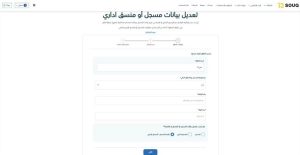
Fill out the data modification form or administrative registration:
Filling out the data modification form or administrative registration is used to update the registrant’s data or appoint a new administrative coordinator when it is not possible to contact the current coordinator. The process begins by entering the domain name and then accurately filling in the required coordinator data according to the specified fields. The request requires the approval of the modifications by the Chamber of Commerce and attaching the sealed file to officially approve the procedure. After the administrative coordinator approves via email and mobile, the user is notified of the final result of the request.
Steps:
Fill out the amendment form:
To make a change to user data or register a new administrative coordinator, the modification form must be filled out by following these steps:
1. Enter the domain name:
Enter the domain name whose details you wish to edit.
Then click Next.
Enter the document type for which the current domain is registered, and the document number:
Enter the document type for which the current domain is registered and the document number for the domain whose data you wish to modify.
Organization Name.
Filling in the coordinators’ data:
In this step, you will see fields to fill in the information for the coordinators associated with the domain. The following information must be entered accurately:
● Domain Agent Number: The number assigned to the agent associated with the domain.
● Full Name: The coordinator’s full name.
● Organization Name: The organization or institution where the coordinator works.
● Email Address: The coordinator’s official email address.
● City: The city where the coordinator resides.
● Full Address: The coordinator’s detailed address.
● Mobile Number: The mobile phone number with the country code (starting with +966).
In the “Administrator” section, select one of the following options:
● Same Registrar: If the registrar is the same person as the domain owner.
● Other Person: If you want to register a new registrar who is different from the current registrar.
Upload a certification file: A certification file will be uploaded from the Chamber of Commerce and then attached to the application.
Send:
Select the option to agree to the “Terms and Conditions and Privacy Policy” by activating the consent box and press the Save and Confirm button to submit the request. If you wish to withdraw, you can press the Cancel button.
Important tips and guidelines regarding data modification or administrative registration:
. This option is used if you are unable to contact the administrative coordinator or if you wish to modify the registrant’s information, in order to facilitate the domain transfer process.
. Fill out the form for the new modification information.
. A file containing the new modifications will be sent to the Chamber of Commerce for approval.
. Attach the stamped file with the modification request.
. The administrative coordinator will approve the request via email and mobile.
. You will be notified of the result if your modification request is approved.
5. Email :
This service allows you to create a professional, custom email address using your domain name (e.g., info@yourcompany.sa), enhancing your professional presence and increasing customer trust when they contact you. This service is a leading business solution that adds a professional touch to your official communications with clients and partners.
The service is available through:
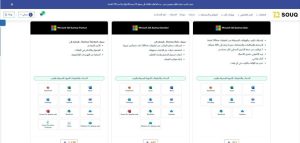
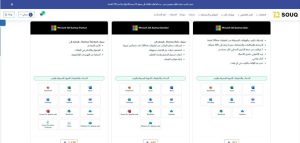
Microsoft 365 :
It is an integrated service from Microsoft that allows you to create a professional email address linked to your domain name, such as:
Excel, Word, and Outlook, the popular Office suite, along with info@company.sa applications.
The service provides productivity tools like Outlook, Word, and Excel via web and desktop applications, supporting the daily operations of businesses professionally. Microsoft 365 solutions include different tiers to suit the needs of small, medium, and large businesses in terms of capacity and security. It also offers reliable security, easy user management, and technical support that ensures efficient business continuity. Types of services include:
● Business Basic
● Exchange Outlook Plan 1
● Exchange Outlook Plan 2
● Business Premium
● Business Basic Standard
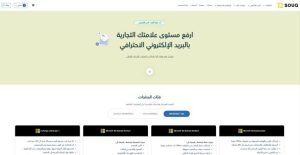
Business Basic :
An email service designed for everyday business use, allowing the creation of an official email address with the domain name.
Features:
● Web and mobile versions of Office applications only
● Chat, calls, and meetings support up to 300 participants
● 1 TB of cloud storage per user
● Official business email
● Standard security
● Technical support via phone and web anytime.
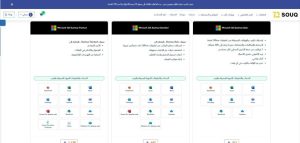
Business Standard :
An advanced service for companies that need more sophisticated tools than Basic, providing integrated office applications.
Features (in addition to Basic):
● Desktop versions of Office applications with enhanced features
● Easily host webinars
● Manage attendance and generate reports
● Manage client appointments
Business Premium :
A comprehensive email service designed for businesses, combining formal email with additional business features such as user management and cloud integration. It is used in commercial environments that require a complete and professional solution.
Features (in addition to Business Standard):
● Advanced security
● Data access and control
● Protection against cyber threats
Exchange Outlook Plan 1 :
A cloud-based email service based on Microsoft Exchange, suitable for small and medium-sized businesses that need professional email to manage internal and external communication.
Features:
● 50 GB mailbox and messages up to 150 MB
● Outlook on the web: A superior browser experience
● Focused inbox: Makes it easy to keep track of your most important emails
● Automatically archives older messages
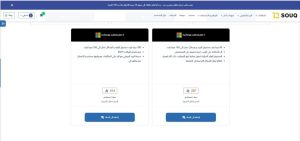
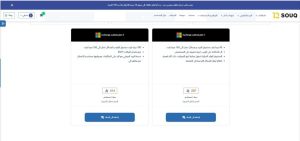
Exchange Outlook Plan 2 :
Microsoft Exchange is an advanced email service, designed for organizations that require more extensive and flexible professional email management.
Features:
● 100 GB inbox and messages up to 150 MB
● Data Loss Prevention (DLP)
● Voicemail service with call answering and a user interface for connecting with other devices
note:
All these services can be activated and linked to your domain directly through the T2 platform control panel, and you will receive login details via email after purchase.
Steps to configure DNS records for Microsoft 365 mail:
You must log in to the DNS control panel and the Microsoft 365 admin center to get the accurate values.
Ownership verification record:
This record is used to verify your ownership of the xzy1.sa domain for Microsoft.
Record Type: TXT
Host/Name (@): Enter @ or leave blank.
Value/Destination: Enter your code starting with MS=msXXXXXXX (obtained from the M365 Admin Center).
Purpose: Verify domain ownership.
2.Mail Routing Log (MX):
This log tells the internet to route all incoming emails to Microsoft servers.
Register Type: MX
Host/Name (@): Enter @ or leave blank.
Value/Destination: Enter the specified Microsoft address (e.g., xzy1sa–com.mail.protection.outlook.com). Priority: 0 or 1 (lower number means higher priority).
Purpose: To route incoming mail to Microsoft servers.
3.Automatic Discovery Log (CNAME):
This allows Outlook and mobile apps to automatically set up email accounts.
Register Type: CNAME
Host/Name: Enter autodiscover.
Value/Destination: Enter autodiscover.outlook.com. Priority: None (N/A)
Purpose: Automatically set up Outlook and mobile apps.
4.Sender authentication log (SPF – TXT):
This record helps prevent your email from being flagged as spam.
Record Type: TXT
Host/Name (@) Enter @ or leave blank.
Value/Destination Enter v=spf1 includespf.protection.outlook.com -all. Purpose: Authenticates the sender to prevent spam.
Update the user’s primary email address (via the Microsoft 365 admin center)
Once the domain is verified, you must update the user’s login and primary email addresses.
5. Accessing user settings:
Sign in to the Microsoft 365 admin center. Go to Users and then to Active users. Select the user (for example, the user who uses the old .onmicrosoft.com address).
In the user details panel, click Manage username and email.
Look for the Username field. Use the drop-down menu next to the @ symbol to change the domain extension from .onmicrosoft.com to xzy1.sa.
Click Save changes. The result will be that the primary email address for the admin and login will be admin@souqt2.sa.
Google Workspace :
Google’s professional email service, Gmail, lets you use your own domain name and integrates with Google tools like Drive and Calendar. It’s suitable for all types of businesses, from small to large corporations.
Types:
● Business Starter
● Business Standard
● Business Plus
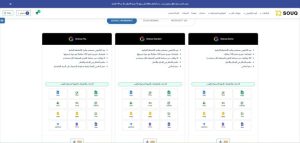
Business Starter :
A basic email service designed for small or startup businesses, allowing the creation of official emails with a domain name at low costs.
Features:
● Dedicated and secure email for business activities
● Video meetings with up to 100 participants
● 30 GB of cloud storage per user
● Administrative and security controls
● Basic support
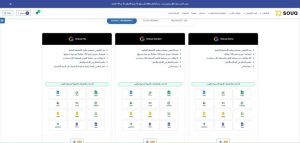
Business Standard :
A professional email service designed for medium-sized businesses, offering enhanced management options and more storage space.
Features:
● Dedicated and secure email for business activities
● Video meetings with up to 150 participants and the ability to record meetings
● 2 TB of cloud storage per user
● Administrative and security controls
● Basic support
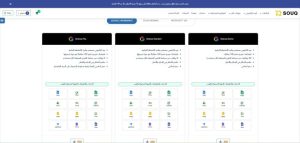
Business Plus :
An email service designed for large or advanced businesses, providing a professional setup and extensive options for managing mail and users.
Features:
● Dedicated and secure email for business activities
● Video meetings with up to 150 participants and the ability to record meetings
● 2 TB of cloud storage per user
● Administrative and security controls
● Basic support (a paid upgrade is available for advanced support).
Steps to complete an email package request:
Choosing the right package:
After selecting the appropriate package from the email section, the package will be added to the cart automatically.
2. Filling out the application:
Upon entering your shopping cart, you will see your order details, including:
● Package name (e.g., Microsoft 365 Business Basic).
● Number of users (you can select the number of users).
● Subscription period (automatically renews after one year).
● Price including tax.
● Option to enable or disable automatic renewal.
● Discount code entry field (if applicable).You can also choose from recommended products such as security certificates or subscribing to messages.
3. SOUQ Webmail :
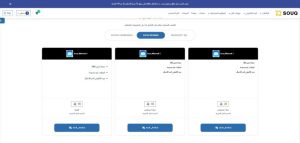
It is a business email solution that provides a reliable and secure service with a simple user interface and offers flexible packages with different storage capacities (10GB, 2GB, 5GB) to suit the needs of small and medium-sized businesses. The service includes sending and receiving an unlimited number of messages with basic email security support. It also features competitive annual prices per user with the ability to easily add directly to the cart.
- SOUQ Webmail 1
- SOUQ Webmail 2
- SOUQ Webmail 3
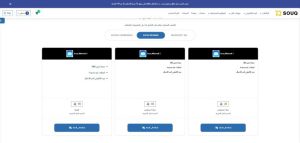
SOUQ Webmail 1 :
It is an economical and suitable email option for startups and small businesses looking for a simple and reliable solution as it provides basic business email service with ease of use and a low annual price per user, making it an ideal starting point for managing official communication.
Features:
2GB storage per user
Unlimited emails
Secure business email
Simple and easy-to-use interface
Low annual pricing suitable for small businesses
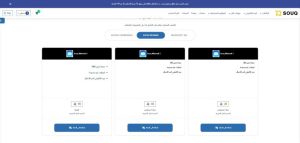
SOUQ Webmail 2 :
It’s a balanced email solution suitable for small and medium-sized businesses that need more space while maintaining ease of use and affordability. It provides a secure and reliable email environment that efficiently supports daily business communication.
Features:
5GB storage per user
Unlimited emails
Secure business email
Ideal for teams and heavy daily use
Economical annual pricing per user
Easy purchasing and management through the platform.
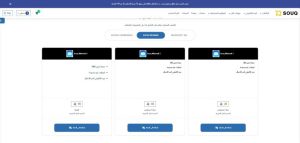
SOUQ Webmail 3 :
It is the most advanced solution in the packages, designed for businesses that rely heavily on email and require higher storage capacity and more flexible performance. It provides a secure and reliable email service that efficiently supports business growth and large teams.
Features:
10GB storage per user
Unlimited emails
Secure, dedicated email for business use
Ideal for heavy use and large teams
Higher performance to handle larger email volumes
Affordable annual pricing for advanced features
Easy management and direct purchase through the platform
6. Safety certificates:
The 2SOUQT platform offers a variety of digital security certificates from Sectigo and GOGETSSL, suitable for various types of websites, whether commercial, personal, or large organizations. The service is available through:
Sectigo security certificates:
It is a leading global provider of digital security certificates to protect websites and online applications. It helps companies secure their data and build trust with customers through communication encryption and identity verification. Sectigo offers diverse solutions suitable for both small websites and large organizations and is a reliable option for enhancing cybersecurity and compliance with global protection standards and their types.
- Essential SSL
- PositiveSSL
- PositiveSSL Wildcard
- PositiveSSL Multi-Domain
- InstantSSL / InstantSSL Pro
- EV SSL (Extended Validation) .
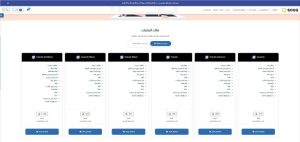
1. Essential SSL :
A certificate to secure only one domain, ideal for personal or small business websites.
Features:
● One domain
● Allow domain name change
● Free reissue
● SSL validator
● IDN
● 256-bit encryption strength
● SHA-256
● RSA/ECC
● Unlimited server license
● Smartphone support.
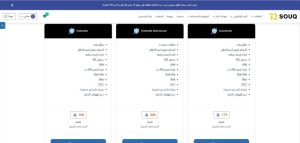
2. PositiveSSL Multi-Domain :
A certificate to protect several different domains within a single certificate, suitable for companies or individuals who manage more than one site.
Features:
● Multiple domains
● Allow domain name change
● Free reissue
● SSL validator
● IDN
● 256-bit encryption strength
● SHA-256
● RSA/ECC
● Unlimited server license
● Smartphone support.
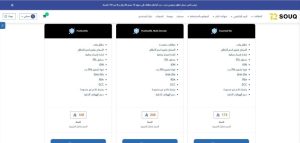
3. PositiveSSL :
A certificate to protect a single domain, suitable for sites that need to secure a simple and effective connection at a low cost.
Features:
● One domain
● Allow domain name change
● Free reissue
● SSL validator
● IDN
● 256-bit encryption strength
● SHA-256
● RSA/ECC
● Unlimited server license
● Smartphone support.
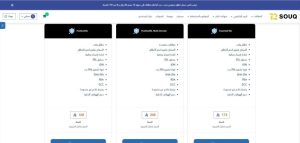
4. PositiveSSL Wildcard :
A certificate to secure a primary domain and all its subdomains, useful for sites that use more than one service or section within the same domain.
Features:
● Subdomains
● Domain name change allowed
● Free reissue
● SSL validator
● IDN
● 256-bit encryption strength
● SHA-256
● RSA/ECC
● Unlimited server license
● Smartphone support.
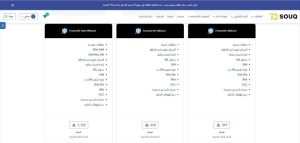
5. PositiveSSL Multi Wildcard :
A comprehensive certification to secure multiple main domains and all their subdomains, ideal for large organizations that own a diverse number of sites and services.
Features:
● Multiple domains
● With SAN (supports alternative names)
● 250 SAN Max
● Allow domain name change
● Free reissue
● SSL validator
● IDN
● 256-bit encryption strength
● SHA-256
● RSA/ECC
● Unlimited server license
● Smartphone support.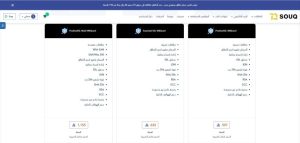
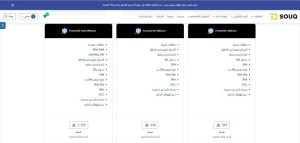
6. Essential SSL Wildcard :
A certificate that secures a primary domain and all its subdomains, ideal for sites that have multiple sections under the same domain.
Features:
● Subdomains
● Domain name change allowed
● Free reissue
● SSL validator
● IDN
● 256-bit encryption strength
● SHA-256
● RSA/ECC
● Unlimited server license
● Smartphone support.
2. GOGETSSL security certificates:
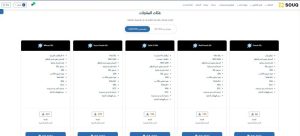
It offers a diverse range of Security SSL certificates designed to meet the needs of websites of all sizes. Solutions include securing a single domain, multiple domains, or all subdomains with SAN and public IP support. The certificates feature strong 256-bit encryption and support for modern technologies such as RSA, ECC, and 256-bit SHA. GOGETSSL is a practical and flexible option for businesses seeking reliable security at an affordable price.
- Domain SSL
- Wildcard SSL
- Multi-Domain SSL (SAN)
- Secure Domain SSL (Flex SSL / With SAN)
- Public IP SAN SSL
1. Multi-Domain SSL :
One certificate to secure several different domains (e.g., example1.com and example2.net), suitable for users or companies who own more than one website.
Features:
● Flex SSL
● With SAN
● Domain Name Change Allowed
● Free Reissue
● SSL Validator
● IDN
● 256-bit Encryption Strength
● SHA-256
● RSA/ECC
● Unlimited Server License
● Smartphone Support
2. Domain SSL :
A basic certificate for securing only one domain, suitable for personal websites or small online stores that need simple and quick protection.
Features:
● One domain
● Allow domain name change
● Free reissue
● SSL validator
● IDN
● 256-bit encryption strength
● SHA-256
● RSA/ECC
● Unlimited server license
● Smartphone support.
3. Secure Domain SSL :
A certificate designed to secure the domain in an encrypted and protected manner, providing greater trust among visitors, suitable for sites that deal with sensitive data or logins.
Features:
● Flex SSL
● With SAN
● Domain Name Change Allowed
● Free Reissue
● SSL Validator
● IDN
● 256-bit Encryption Strength
● SHA-256
● RSA/ECC
● Unlimited Server License
● Smartphone Support
4. Public IP SAN :
A certificate that secures a public IP address (instead of a domain name), used in specific cases such as internal systems or private networks that rely directly on IP addresses.
Features:
● Multiple domains/IP addresses
● With SAN
● Domain name change allowed
● Free reissue
● SSL validator
● IDN
● 256-bit encryption strength
● SHA-256
● RSA/ECC
● Unlimited server license
● Smartphone support.
5. Wildcard SSL :
A certificate that secures a primary domain and all subdomains from it, ideal for organizations that manage multiple departments or services under the same domain.
Features:
● Unlimited subdomains
● Domain name change allowed
● Free reissue
● SSL validator
● IDN
● 256-bit encryption strength
● SHA-256
● RSA/ECC
● Unlimited server license
● Smartphone support.
Steps to complete an SSL certificate request:
1- Choosing the appropriate security certificate:
After selecting the appropriate certificate from the SSL Certificates section, the certificate will be automatically added to the shopping cart.
2- Filling out the application:
Upon entering your shopping cart, you will see your order details, including:
● Certificate name (e.g., PositiveSSL Multi-Domain).
● Service provider (e.g., Sectigo).
● Subscription duration (1 year).
● Price inclusive of tax.
● Option to enable or disable automatic renewal.
● Discount code entry field (if applicable).
Review all the information, then click the “Ready to Pay” button to proceed to the checkout page.
Payment:
● Choose your preferred payment method (such as Mada, Visa, or Apple Pay).
● Enter your payment details accurately.
● After completing the payment, you will receive a confirmation message, and a notification will also be sent to your email and mobile phone.
● Ensure that the administrative coordinator approves your request via their email.
7. Websites and Hosting :
The 2SOUQT platform provides comprehensive solutions for creating and managing websites with high professionalism, from design to operation and secure hosting. This service helps individuals and companies build a reliable digital presence with stable performance and ease of management. The solutions include website hosting, web page creation, and support for technical and security readiness of the website. It is suitable for startups and institutions seeking to launch or develop their websites efficiently. The service is available through:
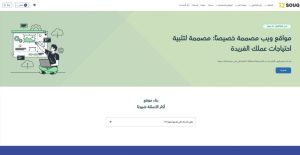
1.Website building
A service that allows you to easily create a website from scratch without the need for programming knowledge, using ready-made and easy-to-use tools. To learn more, click on the Contact Us button.
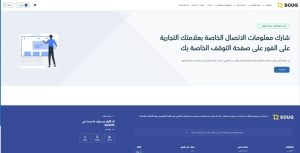
2.Parking Pages :
A service that allows you to display a temporary page on your domain from the moment your trademark is registered, containing contact information for your business. To learn more, click the Contact Us button.
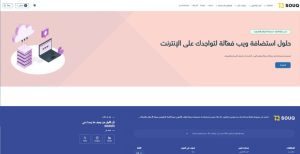
3.Website Hosting
Reliable hosting to run your website, with multiple space options and technical support. To learn more, click the Contact Us button.
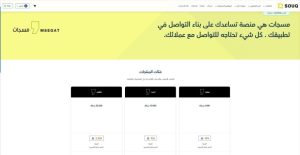
8. Messages:
The Messages platform is a leading platform to facilitate communication between you and your target customers by providing them with essential and professional tools, which paves the way for sending all types of SMS messages to target groups in a safe and secure environment with more satisfactory results in record time and at the lowest possible cost. It was created by T2 Company.
9. Message packages:
● Bronze Package:
4,000 messages – suitable for small or seasonal uses.
● Silver Package:
10,000 messages – ideal for medium-sized businesses and continuous communication with customers.
● Titanium Package:
25,000 messages – designed for large businesses or intensive marketing campaigns
6- Special Package Offers:
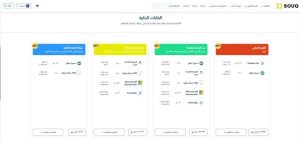
We offer a distinctive range of packages and offers specifically designed to support your digital business journey within the Kingdom, enabling companies to obtain an official Saudi domain, email services, and security certificates at competitive prices and with high added value.
These packages focus on providing reliable and user-friendly solutions suitable for startups, medium-sized enterprises, and large businesses. They help strengthen digital identity, improve customer experience, and increase online trust.
Through these offers, you can obtain:
✔An official and certified Saudi domain
✔Professional business email
✔SSL certificates for protection and security
✔Free messaging for communication and marketing
✔Support services that enable digital operations
All offers come with significant discounts and practical benefits, making them an ideal opportunity for digital transformation and a reliable and comprehensive start to your online business.
10. Blogs:
Educational and informative articles help you understand domain services, hosting, email, and more.
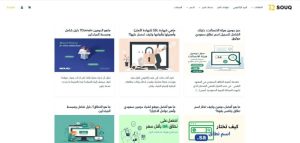
They also provide helpful tips for building a strong and professional digital presence. The 2SOUQT platform offers a specialized blog service aimed at educating and empowering users and businesses in Saudi Arabia with a collection of comprehensive, simplified, and practical articles on key digital concepts related to Saudi domains and their supporting electronic services.
Through these blogs, users gain access to reliable content, written in a clear and accessible style, that answers the most frequently asked questions and provides practical guidance to help individuals and businesses make sound and confident digital decisions.
Blog content includes:
🔹Understanding domains and ranges:
Educational articles explaining what a domain is, how it works, and why it is an essential part of any business’s digital identity.
🔹Awareness of cybersecurity (SSL):
Content explaining the importance of SSL certificates in protecting websites and online stores and securing customer data.
🔹How to register an official Saudi domain:
Detailed guides to accessing the .sa domain through the Communications Authority, with a detailed explanation of the requirements and steps.
🔹Choosing the best domain name:
Guidelines and practical tips for choosing a strong, brand-aligned domain name.
🔹Comparison between domain name service providers:
Information that helps companies choose the best site or platform to buy a Saudi domain.
🔹A comprehensive guide to the Saudi domain:
It focuses on explaining the strength of the Saudi domain (.sa), domain selection criteria, why individuals and companies prefer the local domain, simplified educational and guidance content, the nature of the Saudi domain, its importance and role in building digital identity within the Kingdom, and the difference between the local and global domain.
🔹 Building trust, enhancing credibility, and increasing sales:
How does the Saudi domain contribute to increasing customer confidence and the impact of the local domain on purchasing and sales decisions, enhancing the brand image among the Saudi public and digital presence?
🔹 Definition and introduction to digital coding:
Everything a user needs to know about the Saudi domain and highlight the domain as an essential part of the Kingdom’s digital identity, geared towards entrepreneurs and companies seeking excellence.
11. Site map:
1- Create an account:
The account can be created using an active Google account (Single Sign On SSO) or by manually filling in the account details for the email.

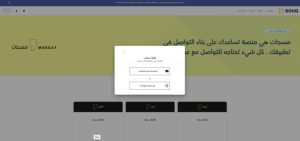
1- Creating an online account via Google:
Click the “Continue with Google” button and select the desired account to create the account directly.
2- Creating an account via email:
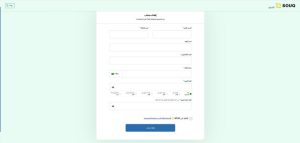
To create an email account, you must fill in the required information in the registration form.
1. First Name: Enter your first name.
2.Last Name: Enter your last name.
3.Organization Name: Enter the name of your organization if the account is for a company (optional).
4.Email Address: This will be used for login and communication.
5.Mobile Number: This is your phone number for contact and account activation.
6.Password: Enter a password that must contain at least one number, at least one capital letter, at least one special character, and at least 8 characters in total.
Confirm Password: Re-enter your password to confirm.
7.Agree to the terms and conditions.
3. Confirm account activation via email:
After completing registration, an email containing an activation link will be sent to your address. Click the link in the email to activate your account. You will not be able to log in until activation is complete.
After clicking the activation link in the email, you will be automatically redirected to the website where you will see a message stating, “Your account has been successfully activated.”
4. Forgot your password:
If you forget your password, you can recover it from the “Login” page using the “Forgot Password” option, provided that:
1.The registered email address is valid and active.
2.The mobile number linked to the account is available to receive the One-Time Password (OTP).
3.Follow the verification steps to reset your password.
Note: If you cannot access your email address or mobile number, you may need to contact technical support and provide proof of account ownership.
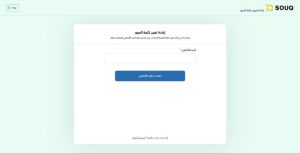
2- Log in:
You can sign in using an active Google account (Single Sign On SSO) or by entering your email address and password and clicking the sign in button.

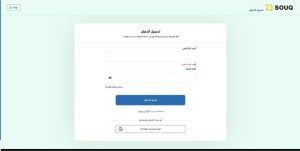
1. Sign in with your Google account:
Click the “Continue using Google” button.
2. Log in via email:
Enter the email address registered in the system in the email field and enter your account password in the password field. You can show or hide the password using the eye icon.
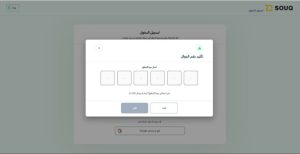
3. Enter the verification code (OTP):
After registration, a verification code will be sent to your mobile phone via SMS (short text message sent to your phone). This code is used only once and is necessary to confirm and activate the account.
Main Menu:
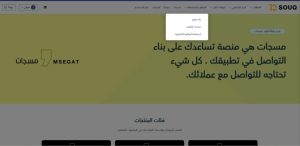
The main menu on the 2SOUQT platform contains a set of essential sections that enable users to quickly and easily access all available digital services. It is designed to provide a seamless and straightforward user experience for both individual and corporate clients.
Sections on the homepage:
Saudi and International Domains:
This section offers services for registering, renewing, or transferring Saudi and international domain names. Details
Email service:
We offer a professional email service for your domain to manage your business professionally, powered by Microsoft 365 and Google Workspace. Details
SSL Certificates (Security Certificates):
Purchasing and installing SSL certificates allows you to secure your website and protect visitor data from major providers SectiGo and GoGetSSL. Details
Website and Hosting :
You can inquire about website creation and hosting services, as well as landing pages. Details.
Msegat :
The “Messages” platform, a product of T2, helps build communication within your application. Everything you need to connect with your customers is available here.
Blogs :
It contains educational articles, news, and tutorials to help users benefit from the platform’s services. Details
My Account :
A sidebar appears after logging in; it’s an icon with the account name, providing quick access to account settings, orders, purchases, and platform services. Details
Shopping cart:
The products you have added are displayed in preparation for purchase.
Change language:
You can switch between Arabic and English.
4- Shopping basket:
The shopping cart on the SOUQT2 platform displays a list of products that have been selected for purchase, with the possibility of adding other products before confirming the purchase and paying the amount. The details show the annual price, the service provider, and the automatic renewal option for easy continuity. The platform also allows entering a discount coupon before completing the payment process in case there are discounts or offers, and provides a clear and secure shopping experience with a comprehensive review before payment.
Steps:
Review the main product in your cart and its details (price, duration, supplier).
Enable/disable auto-renewal as desired.
Add other products if needed.
Enter the discount coupon and click Verify.
Review the final invoice summary.
Click Proceed to Checkout to complete your purchase.
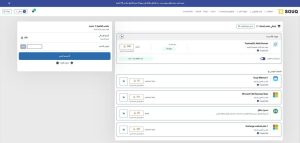
“My Account” menu:
Clicking the “My Account” button at the top of the page will display a sidebar containing all sections related to managing your account, including:
● Dashboard: To monitor your activity on the platform (a detailed explanation is provided in point five).
● Account Settings: To update your personal information or change your password.
● Purchases and Returns: To view purchase invoices and previous return requests.
● My Orders: To track the status of current or past orders.
● Domains: To manage domains, renew them, or modify settings.
● Email Service: To access and manage your email plans.
● Security Certificates: To view and manage SSL certificate renewals.
● Messages: To view alerts and important messages related to your account or products.
● Logout: To securely log out of your account.
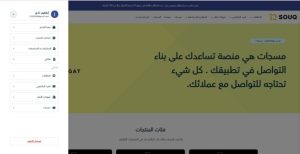
Log out:
It is used to end the current session and securely log out of the account.
12. Control panel:
Upon logging into the control panel via “My Account”, the user can access all details of the registered services.
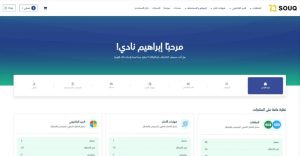
It shows you an overview of the products:
● Domains : Active, Pending, Rejected, Expired, with total number of domains.
● Email : Same classification (Active, Pending, Rejected, Expired).
● Security Certificates : To track the status of SSL certificates associated with domains.
13. Domain Tab:
From the top of the page:
● You can click the “Register a new domain” button if you want to add a new domain.
● Or click the “Transfer domain” button if you want to transfer an existing domain to this account.
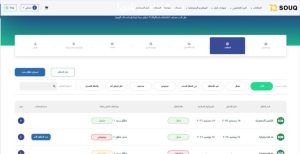
Domain filtering:
Below the buttons, you can use filter buttons to view domains by their status, such as:
All – Active – Pending – Awaiting Deletion – Rejected – Deleted – Transferred to Another Proxy – Awaiting Modification
By clicking on the arrow next to each domain, you will enter the domain management to view status information, entity information, document information, and DNS management. (All information related to the domain and its management):
Case information:
● Domain name.
● Usage.
● Current status: “Active.”
● Activation date. ●
Expiration date
. ● Duration.
● Quick Action Buttons (Top of Page):
At the top of the domain details page (on the left), you will find two main buttons:
● “Renew Domain” button: By clicking it, you can renew the domain directly without having to navigate to other pages.
● “Delete domain” button: Allows you to permanently delete the domain from your account (it is recommended to check before doing so).
Information about the registered entity includes:
● Registrar’s Name.
● Full Entity Name.
● Type of Activity.
● Sector Type.
● Number of Employees.
● Country – City – Address.
Document Information
● Document Type.
● Unified Establishment Number.
● Registration Status.
● Commercial Registration File.
DNS management:
Within the domain settings and after activating the domain, you can manage the DNS settings as follows:
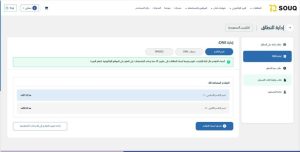
Server names:
● A list of added servers appears (such as ns01.t2.sa and ns02.t2.sa).
● Server names can be modified.
● There is a “Reset to Default Settings” option.
● Server names are like internet directories. They translate domain names into IP addresses, helping browsers find websites.
● If you need to modify a server name, you must contact your hosting provider to make any necessary DNS connection or changes, as DNS management for the domain is with the hosting provider.
DNS records:
This section allows users to manage their domain’s DNS records, such as linking the domain to an IP address, routing mail, or assigning name servers. A security measure in DNS management is the use of digital signatures to authenticate DNS data, ensuring its integrity and protecting it from tampering.
Upon accessing “DNS Management,” a list of all added records will be displayed.
Each record contains the following elements:
● Type:
Specifies the record type, such as A, CNAME, MX, NS, TXT, etc. Each type is used for a different purpose.
● Name:
Used to specify the part of the domain you want to link to, such as www or a subdomain, or leave it blank to apply it to the main domain.
● Value:
Indicates where the record is directed, such as an IP address, a specific server URL, or an email address.
● Duration (TTL):
Specifies how long the record will remain in cached memory (in minutes) before being updated.
● Actions:
Each record displays icons for controlling it, such as editing or deleting. You can also add new records.
If DNS records are modified or added to, there is a propagation period for the records before the changes take effect on the internet. This period usually takes from 30 minutes to 24 hours depending on the type of record and the service provider, and in some cases it may reach 48 hours or even 72 hours.
DNSSEC:
DNSSEC is a security system that adds digital signatures to DNS data. This helps ensure that the responses users receive are genuine and not forged, preventing identity theft or data manipulation.
What happens when it’s activated?
● Your DNS records are secured with digital signatures.
● This ensures user protection against manipulation or misdirection.
● It enhances the credibility of your domain online.
Activation method:
Simply move the toggle switch to activate DNSSEC on your domain.
Additional feature:
When you use SOUQ T2’s DNS servers, you get additional threat protection and a safer browsing and routing experience.
– Request a verification code:
Requesting an authentication code for domain transfer:
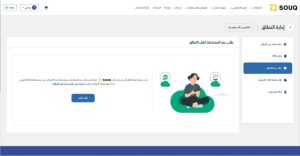
● Used to transfer the domain to an external registrar.
● When you click on “Request Code”, an authentication code is sent to the email address associated with the domain administrator. Request proof of registration document
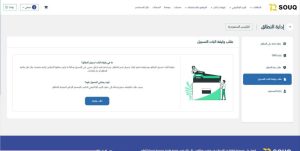
● Used when domain ownership needs to be proven (e.g., for use in official circles or disputes).
● The document is sent to the administrative email address associated with the domain upon request.
14. Coordinators’ Management:
Definition of entities within the Coordinators’ Department:
1. The recorder:
The registrar is the person or entity that officially owns the domain.
They represent the party who purchased the domain and are primarily responsible for it.
Required information for the registrar:
● Full Name
● Email Address
● Mobile Number
● Country
● City
● Address
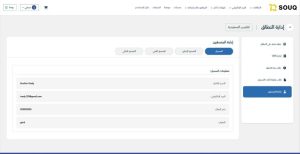
2. Administrative Coordinator:
The Administrator is the legally authorized person to manage the domain.
The Administrator is the only entity with full authority to modify and configure the domain, such as:
● Modifying domain settings
● Managing and updating DNS records
● Modifying server names
● Renewing or restoring the domain.
Required information for the Administrator:
● Full name
● Email address
● Mobile number
● Country
● City
● Address
● – You can submit a request to modify the Administrator’s information, and the Administrator must approve the changes to the existing data. If requesting a change to the Administrator’s email address, approval must first be granted from the Administrator’s current email address, and then confirmation of approval for the new email address to be officially approved.
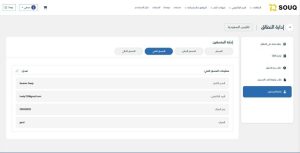
3. Technical Coordinator:
He is the person responsible for the technical aspects of the domain, such as technical settings and hosting matters, but without full administrative powers (a formal coordinator without powers, and usually the same as the administrative coordinator or domain registrar).
Required information for the technical coordinator:
● Full Name
● Email Address
● Mobile Number
● Country
● City
● Address
4. Financial Coordinator:
He is responsible for matters related to payments and invoicing for the domain, such as renewing the subscription or receiving service invoices (a nominal coordinator without powers, and usually the same as the administrative coordinator or domain registrar).
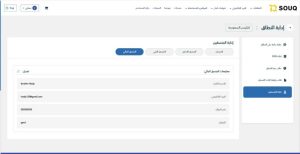
Data required for the financial coordinator:
● Full Name
● Email Address
● Mobile Number
● Country
● City
● Address
Email Services section in the control panel:
Upon accessing the “Email” page in the control panel, you will see a list of all email accounts registered within the system. This list includes the following information:
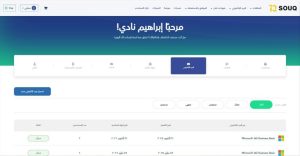
1. Email type:
It displays the name of the plan being used, such as:
Microsoft 365 Business Basic
, and it shows the type of subscription or package.
2. Activation date:
This is the date the email account was activated.
Example: September 4, 2023
3. Expiry date:
This is the date your email subscription expires.
Example: September 4, 2024 or August 29, 2025
(depending on your plan and annual renewal).
4. Number of users:
The number of users associated with this subscription is displayed.
Example: 1 user
5. Status:
This indicates the current email status, which is one of the following:
● Active: The service is currently working without problems.
● Expired: The subscription has expired and has not been renewed. ● Rejected: The email is
being managed by another party.
● Recovered: The email has been recovered after expiration or deletion.
6. Sorting options:
You can use the filters above to view accounts by status, such as:
● All – Active – Rejected – Expired – Recovered
Security Certificates (SSL) Section:
When you access the “Security Certificates” page from the control panel, a list of all certificates associated with your account will appear,
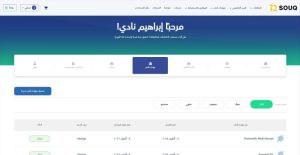
containing the following details:
1. Type of certificate:
It explains the type of security certificate used, such as:
SSL Positive
, which is a security certificate to protect data and encrypt the communication between the site and the visitor.
2. Activation date:
This is the date the certificate was activated and the service began operating.
Example: September 17, 2024 or December 13, 2024
3. Expiry date:
This is the date on which the certificate expires, and it must be renewed before that date to avoid the protection stopping.
4. Customer Service:
The service provider, such as
Sectigo, offers
5. Status:
This indicates the current status of the certificate, which can be one of the following:
● Active: The certificate is active and functioning.
● Delegated: The certificate is under the administration of a third party.
● Reinstated: The certificate has been reinstated after cancellation or expiration.
● Expired: The certificate has expired and has not yet been renewed.
6. Sorting options:
There are filters at the top of the table that allow you to view certificates by their status:
All – Active – Rejected – Refunded – Expired
Issuing a new security certificate
To issue a new security certificate to protect your site, follow these steps:
1. Access the control panel
from the main menu and select “Security Certificates.”
2. Click the “New Security Certificate Registration” button
(this button is located at the top and is blue).
3. Select the required certificate type
; a list of available certificate types will appear.
4- Messages tab:
Through the Messages section, you can manage your message packages and track their status. The following details are displayed for each package:
● Package Type:
The name of the activated package (e.g., Bronze, Silver, Titanium).
● Username:
The identifier or account used to link to the package.
● Activation Date:
The day the package became active.
● Expiry Date:
The day the package expires.
● Status:
Indicates whether the package is “Active,” “Expired,” or “Refunded.”
● New Messages Service Registration Button:
Used to add purchases and refunds.
View details of purchases and returns:
You can access the Purchases and Returns page through your control panel, where all your purchased or returned orders are displayed.
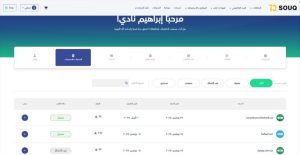
Upon accessing the page, you will see the following elements:
Filters at the top of the page:
These filters are used to sort orders by their status, and are as follows:
All – Accepted – Pending – Rejected – Returned
Filter the results:
You can use the search box to filter results by service name or other information.
The table displays detailed information for each purchase or return you have made, and includes the following columns:
Service: The name of the domain or service purchased.
Purchase Date: The date the purchase was made.
Activation Date: The date the service was activated.
Amount: The price of the service in Saudi Riyals.
Order Status: Indicates the order status, such as (Accepted – Pending – Rejected – Returned).
View: A button that allows you to view order details.
When you click the “View” button next to any order in the Purchases and Returns list, the order details will be displayed, including:
● Cart Items: The name of the purchased service
● Total amount paid: Order value
● Purchase date: The date on which the order was executed.
● Tax ID number: The tax registration number associated with the invoice.
● The option to download the payment receipt as a PDF file.
● The refund button if the product is returnable.
Submit a refund request:
When you click the “Refund” button, an interface titled “Refund Request” appears, which includes:
● Service name.
● Number of years/users.
● Total amount.
● Status.
Important note:
You can submit a return request within 25 days of the rejection date.
If your request is pending, you must contact technical support before submitting your return request.
● After verifying your information, click the “Return” button to submit the request, or “Cancel” to withdraw.
15. My Orders Tab:
You can access your orders through the control panel, where all your purchased orders are displayed:
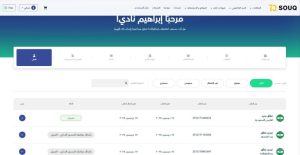
● Order Type: Indicates the type of transaction, such as “Domain Renewal” or “Domain Registration”.
● Order Number: A unique reference number for each order, which can be used for inquiries or tracking.
● Order Date: The day the order was submitted.
● Order Completion Date: The day the transaction was successfully completed.
● Status: Shows the order status, such as (Accepted, Pending, Rejected).
● Filter results from top to bottom by status, such as: “All – Accepted – Pending – Rejected – Returned”.
● View: A button that allows you to access the complete order details.
When you click the “View” button, all the order details will be displayed. The following information will be shown:
Order details:
● Domain name: Example choice: .Saudi Arabia
● Number of years : 1 year
● Application date
● Application completion date
Information about the entity:
● Registrant’s Name
● Activity Type
● Sector Type
● Number of Employees
● Country
● City
● Address
● -You can also request to resend the administrative coordinator’s acceptance email from here, so that the administrative coordinator can approve the request if he has not approved it previously.
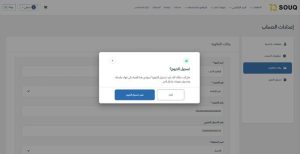
16. Account Settings :
In this section, you can manage your personal information and control your account’s security options.
Account settings allow you to update details such as your name and mobile number, change your password, country and city, and customize usage preferences to suit your needs.
The account settings contain:
Personal information:
You can edit your basic information, including:
● Personal photo.
● Full name.
● Address.
● City.
● Email address (with verification).
● Mobile number.
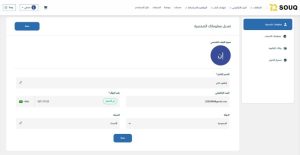
Account information:
● Login details.
● Change your current password.
● Opt in or unsubscribe from receiving promotional campaigns.
● Reset your password if forgotten.
● Delete your account.
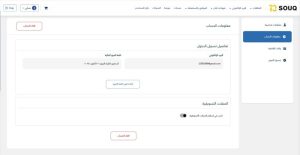
17. Billing and Payment Methods:
● Displaying active products
● Service name: Displays the domain name (e.g., tt2.com.sa).
● Purchase date: The date the domain was purchased or renewed.
● Payment method: The method used to pay the domain fees.
● Status: Indicates whether the domain is active or expired.
● You can find the domain’s next expiration date by noting the phrase under each domain, such as:
“Renews on August 20, 2026”.
● To cancel auto-renewal, tap the three dots (…) and select “Disable auto-renewal”.
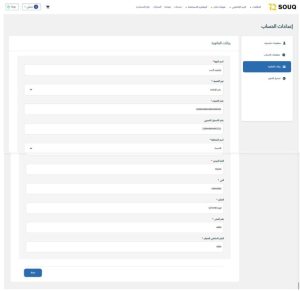
18. Frequently Asked Questions (FAQ):
Can I register a Saudi domain (.sa) through international agents?
Answer:
No, Saudi domains (.sa) cannot be registered or transferred through international agents.
Registration and management must be done only through local agents licensed by the Communications and Information Technology Commission (CITC). T2 has been an officially accredited agent since 2022.
What is the difference between an administrative coordinator, a financial coordinator, and a technical coordinator?
Answer:
The Administrative Coordinator is the primary account and is legally authorized to manage the entire domain, including data modification, DNS, renewal, transfer, and recovery.
The Financial Coordinator is responsible for invoicing and payment-related communication only and does not have administrative privileges.
The Technical Coordinator handles technical communication and does not have full administrative authority.
Please note that all requests are only approved by the Administrative Coordinator.
How long does it take to activate or update DNS records after modification?
Answer:
The process of distributing DNS records usually takes from 30 minutes to 24 hours, and in some cases it may reach 48–72 hours depending on the type of record and the service provider. It is advised not to repeat the modification during this period.
What happens if the domain expires and I don’t renew it?
Answer:
You can reclaim the domain within 30 days of the expiration date.
After 30 days without reclaiming it, the domain becomes available for registration by any other party.
If the domain is still active, it is recommended to use the domain renewal option immediately to avoid any risks.
Can I link my Microsoft 365 email and Google Workspace immediately after purchase?
Answer:
Yes, after purchasing an email package from the 2SOUQT platform, you can directly link it to your domain name by setting up DNS, TXT, SPF, CNAME, and MX records. Login details and detailed instructions will be sent to your email address after the order is completed.
Can I transfer my domain to the T2 platform if it is registered with another party?
Answer:
Yes, you can transfer your domain to the 2SOUQT platform, whether it’s a Saudi or international domain, provided you meet the transfer requirements, such as:
60 days must have passed since the domain registration or the last transfer.
The domain must not be nearing expiration – less than 5 days for Saudi domains.
You must provide an authentication code (Auth Code/EPP Code). Some transfer requests are subject to review by the Communications and Information Technology Commission (CITC).
Can I permanently delete the domain from my account after registering it?
Answer:
Yes, you can delete the domain from your account via the control panel, but caution is advised because:
Deleting the domain may result in its permanent loss.
It can only be recovered through approved registration systems.
Before deleting, ensure the domain is not linked to active services such as email or SSL certificates.
Can the domain ownership be changed to another person or entity?
Answer:
Yes, the 2SOUQT platform offers a domain ownership transfer service, allowing you to transfer domain ownership to another user within the platform after:
Completing the ownership transfer form.
Obtaining approval from the current owner’s administrator.
Confirming the new owner’s eligibility according to the domain registration requirements.
What should I do if I don’t receive the activation or approval message via email or mobile phone?
Answer:
If you do not receive the activation message or One-Time Password (OTP), we recommend the following:
Verify the validity of your registered email address and mobile number.
Check your spam folder.
Use the “Resend Approval Message” option on the application page.
Contact our technical support team if the problem persists.
Is my bank card information saved when I pay?
Answer:
No, the 2SOUQT platform does not store any bank card data.
All payments are processed through secure and approved electronic payment gateways such as Mada, Visa, STC Pay, and Apple Pay. Automatic renewals are processed through a secure payment gateway simulation only.
19. Conclusion:
This guide aims to empower users to fully utilize the 2SOUQT platform by clearly outlining the steps involved and explaining the available tools and functions in a simple and practical manner.
We are committed to providing a seamless and secure experience that helps users manage their domains and digital services efficiently and reliably.
If you have any questions or require support, please contact our customer service team at any time to ensure the best possible experience.